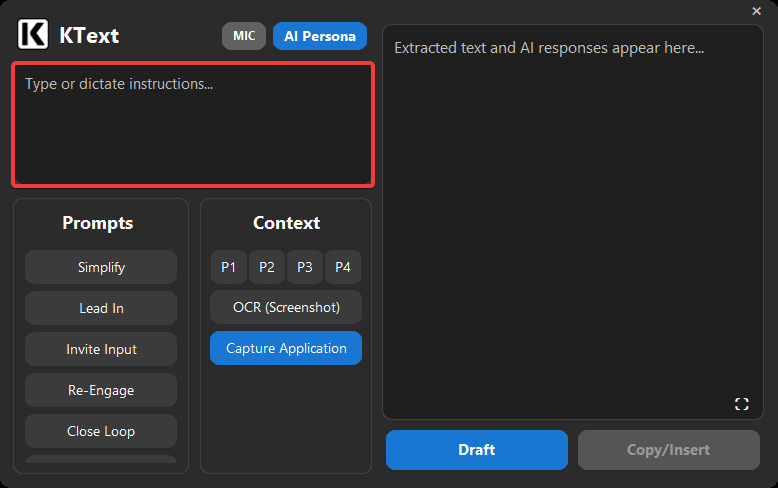
Intent Box
Tell KText what you want to happen—type it, or hit the mic button to dictate. The intent box is where you direct the outcome.
KText’s job is to bring that intent to life—even when your first pass is messy, incomplete, or unsaid.
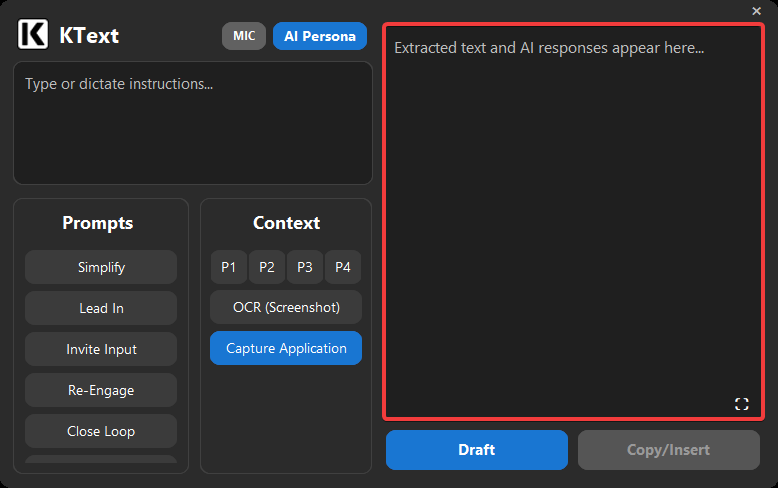
AI Response Box
The AI response box is your working draft. If you had text selected when you clicked the hover icon, it appears here; otherwise, you can use it as a drafting area.
Clicking Draft sends your content to AI and returns the response here. If you edit the draft, those edits become the baseline for the next Reroll (Ctrl+Z to undo). Without edits, Reroll keeps using the original text as the baseline, ensuring you don't drift too far from the source.
When you click Copy/Insert, your markdown response from AI will be converted to HTML for compatibility across applications.
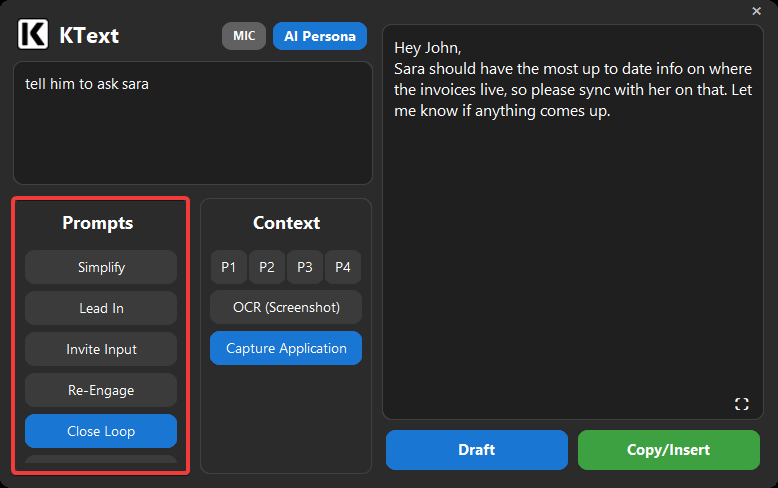
Prompt Selection
Pick a built-in prompt (like Simplify or Lead In). Prompts act as reusable “instructions” for repetitive tasks. You can multi-select prompts (Ctrl/Shift) to stack behaviors. Build your own to fit your needs.
Context Selection
Give KText the context it needs to act like an assistant at your side—seeing what you see and anticipating what you need next.
Use Capture Application to show it everything, or OCR to tap the screen and say, "look at this."
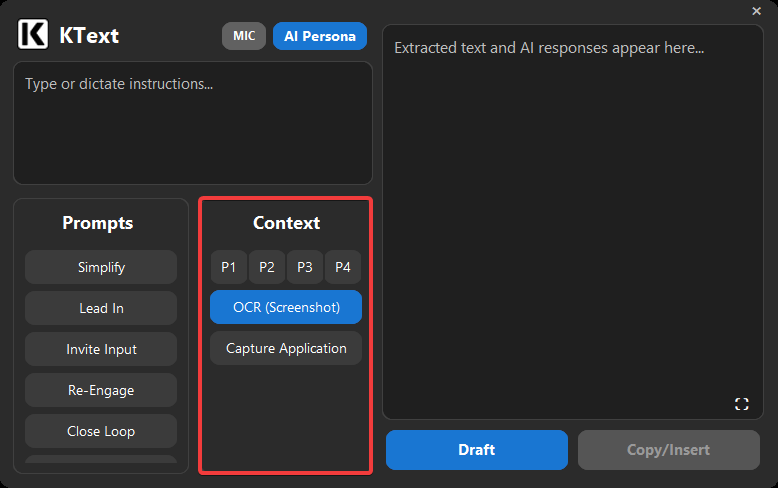
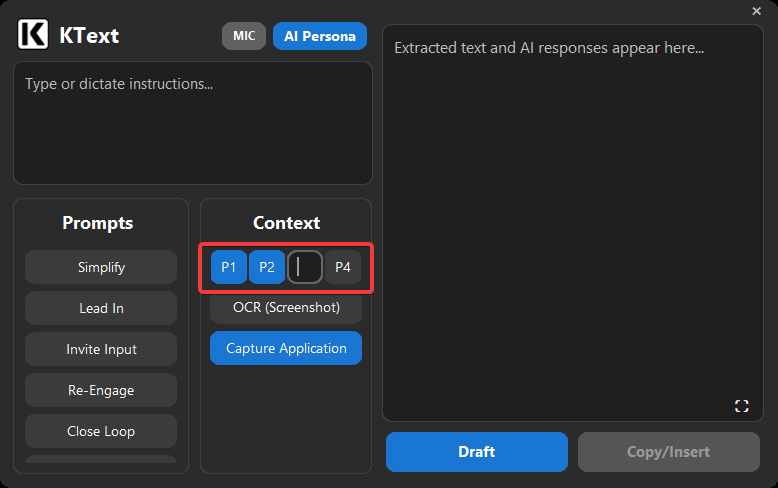
Paste Buttons (P1–P4)
Paste your context (Ctrl+V). Use P1–P4 as four separate 'context slots' to share background context to KText. Whether it's outage announcements, product details, a coworker's chat, or shared boilerplate your team uses, you can paste multiple sources so the draft draws from everything you were going to reference anyway—without you doing the mental work of stitching it together.